

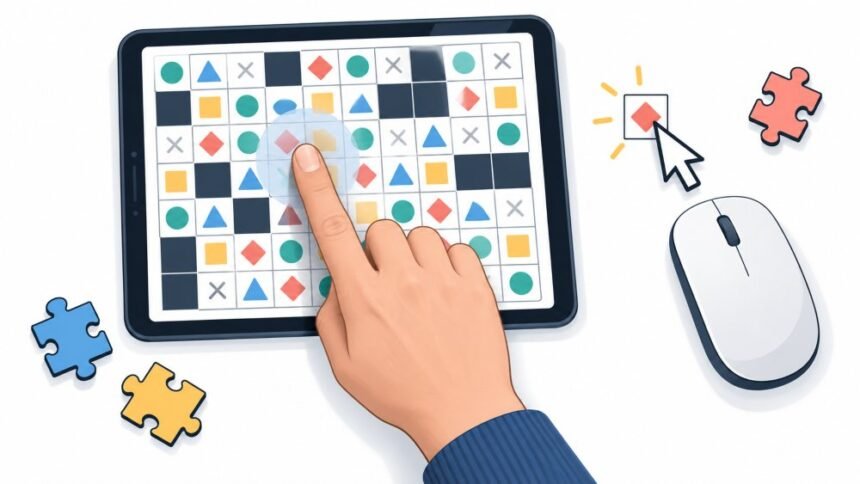
There is a specific flavour of frustration that comes from losing a Minesweeper board because you meant to flag a square and instead uncovered it. Or watching a jigsaw piece light up under your finger and refuse to move. Or reading a hint in the help screen that tells you to press R to rotate, on a device with no R.
The instinct in that moment is to assume you are being clumsy. Usually you are not. You are using an interface that was authored for a pointing device with properties your finger does not have, and nobody translated it before putting it on a phone.
What follows is a description of the mouse habits that break on glass, how to recognise them before you have invested twenty minutes, which workarounds are worth the effort, and when the honest answer is to stop.
What A Mouse Can Do That A Finger Cannot
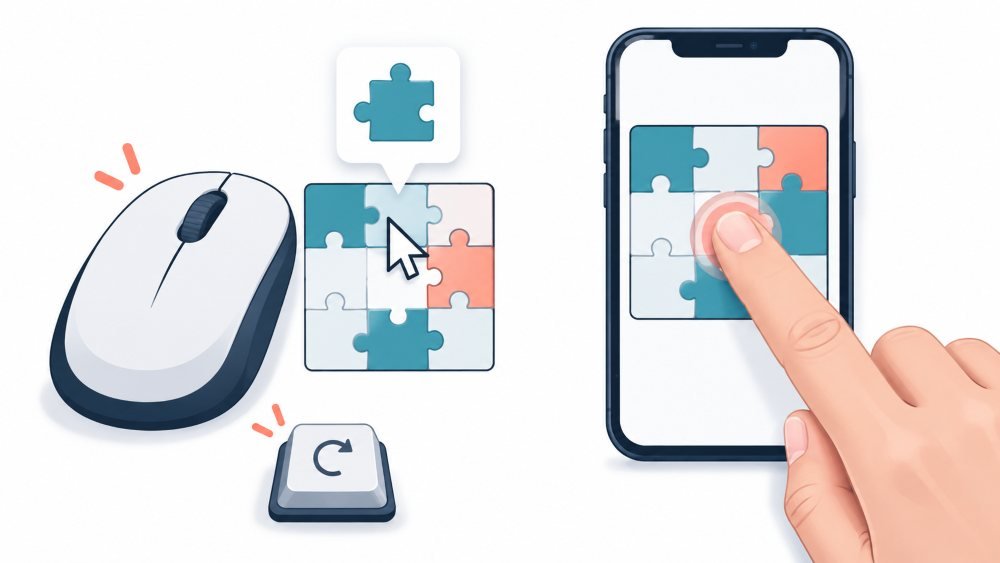
A mouse pointer can sit over something without selecting it. It occupies roughly one pixel, so it never covers what it is pointing at. It has at least two buttons, and often a wheel. It stays exactly where you left it when you take your hand away. And while it works, the other hand is resting on a keyboard full of modifier keys.
A finger has none of that. It arrives and commits in the same motion; it is wide and opaque; it has one button; and it vanishes from the interface the moment you lift it.
This is not a matter of taste or nostalgia. Mozilla’s own documentation for pointer events opens by noting that most web content assumes the user’s pointing device will be a mouse, which is why the unified pointer model had to be invented in the first place. Puzzle games are especially exposed, because their whole interaction vocabulary tends to be built from small, precise, repeated pointer actions.
Mouse Habits That Break On Glass
Hover Used To Carry Information
The most common failure, and the hardest to work around. A tooltip that explains a component, a preview of where a piece would land, a highlight showing which row and column a cell belongs to: all of these live in the gap between pointing at something and selecting it, and on a touchscreen that gap does not exist.
CSS has had a way to detect this for years. The hover and pointer media features report whether the primary input can hover and how precise it is, which lets a well-built game show that information permanently on touch instead of hiding it behind a cursor. When a game has not bothered, the symptom is unmistakable: labels you can never read, and previews that only appear after you have already committed to the move.
Right Button Treated As A Verb
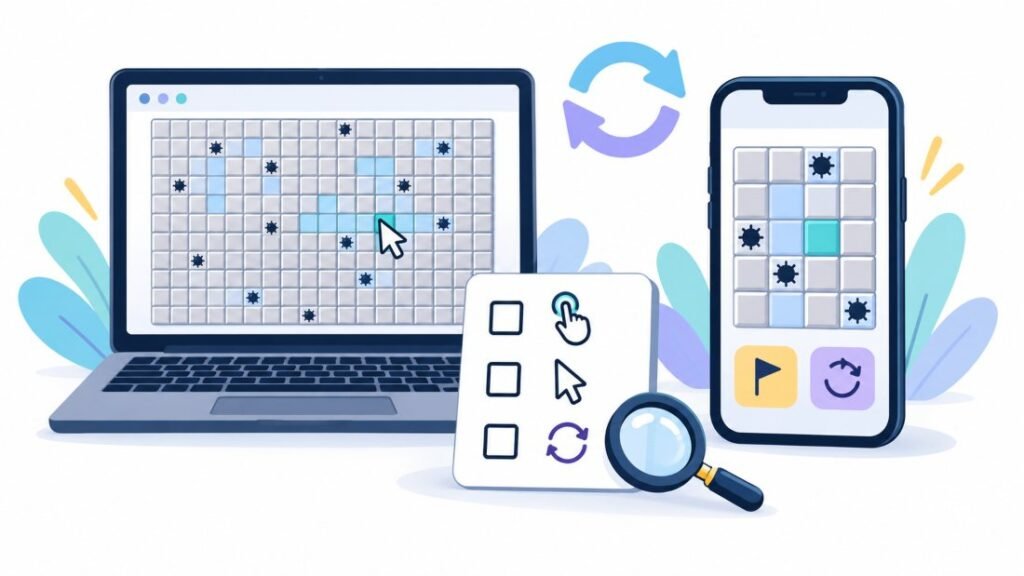
Classic Minesweeper needs two verbs, reveal and flag, and it assigns the second to the right mouse button. There is no second button on your phone. Long press is the usual substitute, and it collides directly with the browser’s own long-press behaviour, which is text selection and a copy menu.
The tell is quick. If the game has no visible flag button or mode toggle anywhere in its interface, nobody thought about this screen. The same pattern turns up in tile-based logic games that use a right-click for marking, and in sim-flavoured puzzlers that put real options in a context menu.
Drag And Drop Built On Mouse Machinery
This one surprises people, because dragging feels like the most natural touch gesture there is. The problem is the specific technology many web games use. The HTML5 drag and drop specification is built on mouse events rather than pointer events, so most mobile browsers do not fire it from a finger, which is why polyfills exist to translate one into the other. A developer who used the native API and never tested on a phone ships a game where pieces will not move.
Accessibility guidance has caught up with this. WCAG 2.2 requires that anything operated by dragging can also be achieved with a single pointer, unless the dragging itself is essential. Tap to pick up and tap to place is the usual answer, and a puzzle game that offers it is telling you somebody took the port seriously. The essential exception is real, though, and it genuinely covers things like freehand drawing and some physics puzzles where the path of the drag is the move.
Targets Sized For A Pointer, Not A Fingertip
Platform guidance puts the practical minimum around nine millimetres, and design references generally recommend keeping tap targets in the seven to twelve millimetre range with spacing between them. A dense sudoku grid on a phone, a wire routing board, or a hidden object scene will often put interactive cells well under that.
Size is only half the problem. The other half is occlusion. Your finger covers the thing you are aiming at, so you cannot see the result until you lift, and by then the move is made. This is why precision puzzle games feel worse on touch than their control layout alone would predict.
Double Clicks And Timed Click Sequences
Solitaire’s double-click to send a card to the foundation is a small piece of genius on a desktop and a liability on a phone, where many mobile browsers treat a double tap as a zoom gesture. The likely outcome is that the board jumps to two hundred percent and the card stays where it was.
Anything built on click timing has the same weakness. Click and hold to charge, click twice quickly to confirm, click and release without moving: fingers are less consistent at all of these than a hand resting on a desk.
Keyboard Shortcuts Doing The Real Work
Sudoku with number entry, rotation bound to a key, undo on a familiar key combination, arrow keys to nudge a piece by one square. On a phone there is no keyboard until something summons one, and a summoned keyboard covers a large share of the screen, which on a puzzle board is the part you needed to see.
Read the help or instructions screen before you start. If it lists keys, you have your answer in fifteen seconds.
Why The Game Sometimes Guesses Wrong About You
Some games do ship a touch build and still hand you the mouse one. Input detection is genuinely unreliable, and this has been well documented as a source of incorrect assumptions: a laptop with a touchscreen usually reports a mouse as its primary pointer, an iPad reports a coarse pointer even with a mouse or pencil attached, and a stylus sits awkwardly between the categories.
The practical consequence is worth knowing. If a game feels built for the wrong device, the detection may be the reason rather than the design. Trying a different browser, or the request desktop site option, sometimes flips you to the other build. It can also make things worse, so do it before you have progress worth losing.
Ninety Second Test Before You Commit
Open the help or settings screen first and scan for the words key, right-click, or drag. Then try the game’s primary verb exactly once. If you cannot place, mark, or move a single piece with one ordinary tap, nothing later in the game will be easier.
Next, look for a mode toggle: a flag button, a pencil button, a rotate button sitting somewhere on the frame. Its presence is the strongest single signal that a human being adapted this for touch rather than shipping the desktop build unchanged.
Finally, find the control you will use most often after the main one, usually undo, and check whether you can hit it reliably. Try a pinch zoom too. A small board with zoom disabled is a board you will be squinting at all evening.
What Actually Helps, Roughly In Order Of Effort
Turn the phone to landscape for grid-based puzzles, since most of them are wider than they are tall and the extra width buys you bigger cells. Use browser zoom rather than the game’s own zoom when the game gives you the choice, because browser zoom scales the touch targets with the art.
A cheap capacitive stylus is the most underrated fix for dense grids. It gives you a small contact point, and more importantly, it stops your hand covering the board. For a few pounds, it turns several genuinely unplayable games into merely fiddly ones.
The real fix is a pointer. Android tablets and phones accept a USB or Bluetooth mouse directly, and on Apple devices you can connect a wired or Bluetooth pointer through AssistiveTouch and get an onscreen cursor. A cursor restores hover in most browsers, restores the right button in many, and restores precision in all of them. If you play this kind of puzzle regularly on a tablet, a small mouse changes the category of experience available to you.
And there is the unglamorous option. Some games are simply better on a computer, and choosing to play them there is not a defeat.
When To Stop Trying
If the core verb is a right-click with no alternative offered anywhere in the interface, stop. If the game requires a key held down while pointing, stop. If you are zooming in and out on every single move, the session has stopped being about the puzzle and started being about the interface.
That decision is easier if you remember what you came for. A puzzle is supposed to absorb attention, and an interface that demands its own share of your concentration has already taken the thing you wanted.
This Is Not Your Clumsiness
It is worth saying plainly, because people internalise these failures. A puzzle that cannot be operated with one finger is failing a documented expectation about pointer input, not revealing something about your coordination. The accessibility guidance above exists precisely because dragging, tiny targets, and path-based gestures exclude people for reasons that have nothing to do with effort.
The same design shortcuts hit hardest for anyone with a tremor, anyone playing one-handed while holding something else, anyone with long nails, which shift the contact point away from where you are looking, and anyone whose hands are cold or gloved. If a game is fighting you, you are almost certainly not the only one.
A Note About Your Hands
Precision tapping and pinch dragging on glass for an hour is a repetitive load, and it is a slightly unusual one because the thumb does a lot of gripping and reaching at the same time. Repetitive gripping and thumb motions are among the recognised causes of de Quervain’s tenosynovitis, which shows up as pain on the thumb side of the wrist.
Nothing here is a diagnosis, and an evening of sudoku is not an injury risk. The sensible habits are easy anyway: rest the device on something instead of gripping it, use an index finger rather than a thumb for the precise taps, swap hands occasionally, and treat the first ache as the signal to stop rather than something to finish the level through. Pain that persists for a couple of weeks is worth showing to a clinician rather than waiting it out.
Limits Of Any List Like This
Ports change. A game that was hostile last year may have a touch build now, and a game that worked may have been rebuilt by someone who only tested on a desktop. Because input detection varies, two people opening the same address on different devices can get meaningfully different versions.
That is why this article describes patterns and gives you a test rather than declaring verdicts on named titles. The patterns are stable and checkable against published guidance. Any specific claim about a specific game has a short shelf life, and browser puzzle classics are especially unreliable in this respect, since a dozen different people have built a dozen different minesweepers and the name tells you nothing about the quality of the port.