

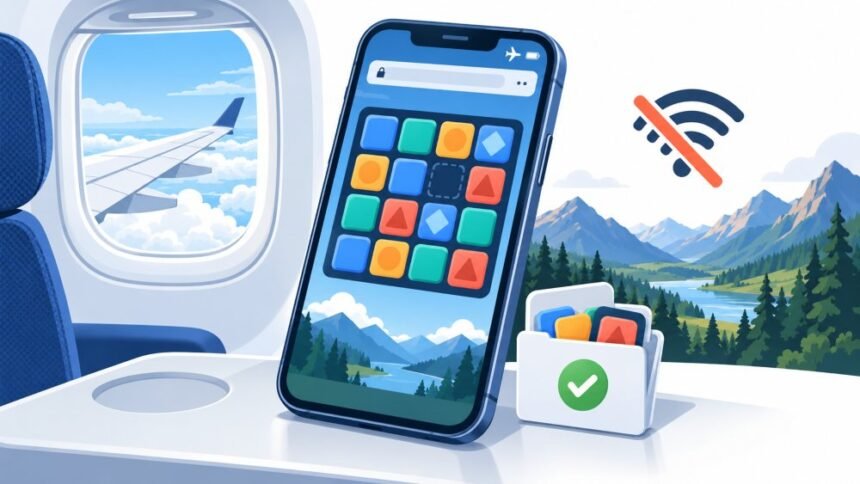
There is a specific flavor of disappointment that arrives about forty minutes into a flight. You have decided against paying for cabin Wi-Fi, you have finished the safety card, and the game you had open on the jet bridge is now a white rectangle with a small sad icon in the middle of it.
The annoying part is that the game never needed the internet. Most casual browser games are a few hundred kilobytes of JavaScript doing arithmetic on your own device. The server stopped mattering the moment the board finished drawing. What broke was everything around the game: the analytics ping, the ad slot, the font pulled from a CDN, the accidental swipe that triggered a page reload.
So this is not a list of fifty links you will never open. It is an explanation of why some browser games survive a dead zone, and others collapse instantly, plus the fifteen minutes of preparation that decides which kind you are holding at 35,000 feet.
Why Most Browser Games Die The Moment You Lose Signal
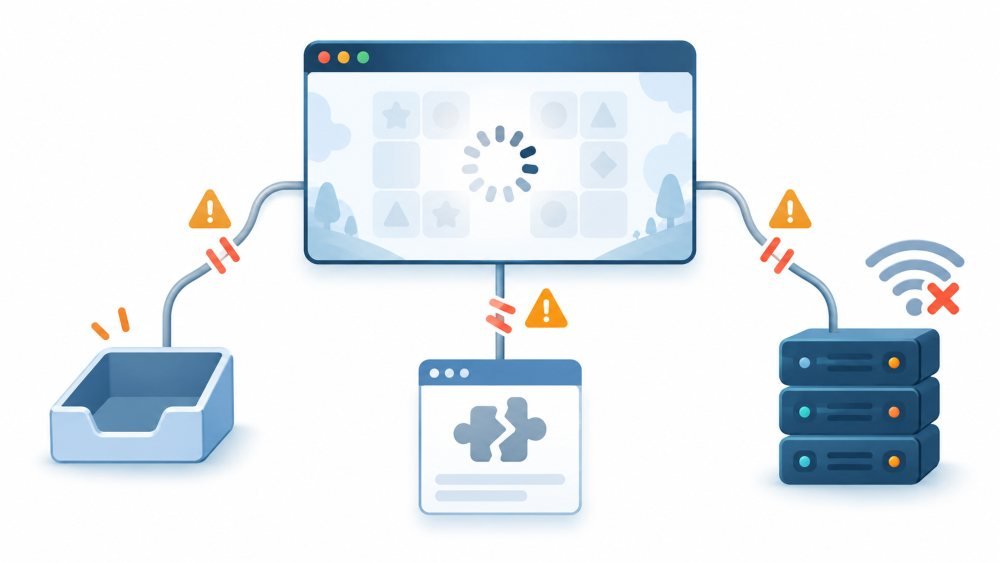
Three things usually go wrong, and they fail in different ways.
- Nothing was ever stored. The ordinary browser cache is a speed optimization, not a promise. The browser keeps files around when it feels like it, revalidates them against the server when it can, and quietly discards them when disk space gets tight. A game that relies on the plain HTTP cache might work offline on Tuesday and not on Wednesday, on the same phone, with no explanation.
- The game is fine, but the page is not. This is the most common failure and the most frustrating, because the code that runs the game is already sitting on your device. A render-blocking script from a third party cannot load, a consent banner cannot initialize, an ad slot stalls, and the page never gets far enough to draw anything. You are looking at a blank screen that is technically only missing a tracking pixel.
- Content genuinely lives on a server. Daily puzzles fetch the day’s answer. Multiplayer needs an opponent’s moves relayed. And the big aggregator portals that advertise thousands of free games are mostly iframes pointing at other domains, which means nothing about them works offline, ever.
Three Ways A Game Keeps Working Without A Connection
- The tab is still alive. If you loaded the game and never touched refresh, the JavaScript is in memory and will keep running with the network gone. This is the cheapest option and the most fragile one. Phones aggressively discard background tabs when memory gets tight, and a discarded tab reloads from scratch when you return to it. If you are relying on this, do not switch apps, do not pull down to refresh, and accept that it is a coin flip.
- Browser cache happens to cooperate. Sometimes it does. Do not build a six-hour flight around it.
- A service worker cached the game on purpose. This is the real answer. A service worker is a small script that sits between the page and the network, installs itself on your first visit, and copies the game’s files into a dedicated storage area. On every later visit, it can serve those files straight off your disk without asking the network anything at all. Mozilla’s walkthrough of how a service worker makes a game work offline is the clearest short explanation of the mechanism if you want to understand what is actually happening.
One caveat worth internalizing: a site being installable as an app does not mean it works offline. Installability and offline capability are separate features that often ship together and sometimes do not. Plenty of games install beautifully to your home screen and then show you a connection error at cruising altitude. The only way to know is to test.
Games That Were Actually Built For This
- Chrome dinosaur. It is the offline page, which is the whole joke. The Chrome design team built it in 2014 as an easter egg for the “no internet” screen, and Google’s own interview with the people who made it is a nice bit of history. You can reach it deliberately at chrome://dino with or without a connection. Space to jump, down arrow to duck. It gets genuinely hard around the four-minute mark.
- Edge Surf. Microsoft’s answer, and a more substantial game than the dino. It arrived in the stable channel with Edge 83 in May 2020 and lives at edge://surf on desktop, Android, and iOS. There are several modes, character customization, gamepad support, and an accessibility panel with high visibility and reduced speed options. Worth knowing about if you are traveling with a kid who finds the dino too punishing.
- PROXX. A Minesweeper variant built by Google’s own web team as a demonstration of what the format can do, documented on web.dev. It is tiny, it is fully keyboard- and screen-reader-navigable, and it was designed from the start to run on weak devices with no connection. If you only cache one thing before a flight, this is a strong candidate.
- Small puzzle and card PWAs. 2048, sudoku, solitaire, minesweeper clones, nonograms. As a category, these are reliable, because a rule-based game is a few hundred kilobytes and caching the whole thing costs nothing. As individual sites, they vary wildly, which is why the testing step below is not optional.
- Chess, with a correction. A lot of roundups claim the Lichess website works offline in a browser once installed. In practice, it does not do this reliably, and Lichess’s own community has said so repeatedly over the years. What genuinely works offline is the Lichess mobile app, which runs Stockfish locally and lets you play the engine at any level with no connection. If you want chess on a plane, install the app before you leave, not a bookmark.
- Daily puzzles, on a technicality. Wordle, Connections, most newspaper crosswords: the puzzle comes from a server, because that is how everyone gets the same puzzle. Open today’s before you lose signal and do not refresh, and you can finish it in the air. You will not get tomorrow’s. Treat the daily habit as something you front-load, not something you rely on.
Fifteen Minutes That Actually Matter
Do this the night before, not at the gate, because if something needs to download, you want real bandwidth.
- Pick two or three games, not twenty. Caching is per site, and you will only play two anyway.
- Load each one fully and play a round. The first load is when the service worker installs and pulls everything down. A game you opened and immediately closed may not have finished caching.
- Install it. In Chrome and Edge, look for the install icon in the address bar or the install option in the browser menu. In Safari on iPhone or iPad, use the share sheet and choose Add to Home Screen. This step matters more than it looks, for reasons covered in the next section.
- Run the dry run. Turn on airplane mode while you are still standing in your own kitchen. Force-close the browser. Open the game from the home screen icon. If it loads and plays, it will load and play on the aircraft. If it shows an error, nothing you do at 35,000 feet will fix it.
- Check that progress saves. Play a few moves, close, reopen. Most of these games keep scores in local browser storage, which works offline. Anything that syncs to an account will queue up and reconcile when you land, or quietly lose the run.
That fourth step is the entire article compressed into ninety seconds. Almost every “it said it worked offline and it did not” story comes from someone who skipped it.
iPhone Problem Nobody Warns You About
Safari deletes this stuff on a timer. Under Intelligent Tracking Prevention, WebKit caps all script-writable storage at seven days, and that cap explicitly includes IndexedDB, LocalStorage, SessionStorage, and service worker registrations and cache. The clock counts days you used Safari without interacting with that particular site, so a game you cached a fortnight ago and have not opened since is gone.
The exemption is the important half. Apple’s engineers were clear that web apps added to the home screen are not part of Safari and keep their own counter of days of use, so they are not expected to have their data deleted. On iOS, Add to Home Screen is not a cosmetic shortcut. It is the difference between your offline game existing and not existing when you need it.
This also explains the classic complaint, “it worked on my last trip.” It did. Then seven days of ordinary browsing went by.
Storage Eviction And Other Quiet Failures
Even on Android and desktop, cached game data is stored on a best-effort basis by default. As MDN’s reference on storage quotas and eviction criteria explains, the browser can clear a site’s entire storage bucket when the origin exceeds its quota or the device comes under storage pressure, and it does so without interrupting you. Sites can opt into protected storage using the persistent storage API, but most small games never bother.
The practical translation:
- Suppose your phone is scraping along with 200 MB free; free up some space before a long trip. Storage pressure is when eviction happens.
- Private and incognito windows usually wipe everything when you close them. Cache your games in a normal window.
- Clearing browsing data on your way out the door will delete your flight entertainment along with your cookies.
When The Browser Is The Wrong Tool
A self-contained HTML file saved to your device and opened directly from your file manager is the most durable option there is: no server, no cache policy, no eviction, no expiry. Many game jam entries and small tools ship exactly like this, and sites like itch.io often offer a downloadable zip alongside the browser version: extract it, open index.html, play.
Two honest limits. First, browsers restrict what a page loaded from a local file can do, so games that use JavaScript modules or fetch their assets at runtime will often fail with a security error when opened this way, even though they work fine when served from a website. Test before you travel. Second, this is comfortable on a laptop and genuinely awkward on a phone, especially on iOS.
And the broader point: if you are facing eight hours with no connection, a native app is simply the better tool. Offline browser games are an excellent fallback for the dead zones you did not plan for, the basement conference room, the train through a valley, the hotel with the captive portal that never loads. They are a mediocre strategy for a transatlantic flight you have known about for a month.
Cabin Rules, Battery, And Comfort

Devices in airplane mode are permitted throughout the flight on most carriers, subject to that airline’s own policies, which are built on FAA guidance in Advisory Circular 91.21-1D. A few things follow from that:
- Crew instructions override everything, including this article. On a small percentage of flights, typically low-visibility approaches, you may be asked to power devices down entirely. Do it without debating it.
- Laptops still get stowed for taxi, takeoff, and landing on most airlines, because a loose one becomes a projectile. Phone games are the realistic option during those phases.
- Bluetooth headphones generally still work: on most phones you can re-enable Bluetooth after switching on airplane mode, and most carriers allow it. Check the airline’s policy if you are unsure, and pack a wired pair as a backup.
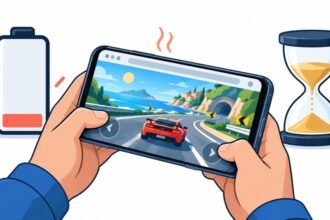
- Battery is your real constraint. Seat power is not guaranteed, and many aircraft USB ports deliver so little current that a phone charges slower than a bright screen drains it. Drop your brightness, and prefer flat 2D puzzle games over anything using WebGL or 3D, which will empty a battery and warm the handset noticeably faster.
- Motion sickness is a genuine consideration. Focusing on a close, fixed screen while the cabin moves is a well-known trigger, and turbulence makes it worse. Turn-based and static games are much easier on the system than fast side-scrollers. Take breaks, keep the air vent on you, and look out at the horizon now and then.
Realistic Kit
Two or three small games cached and installed, one self-contained HTML file saved to the device as insurance, a charged power bank, and a ninety-second airplane-mode dry run before you leave the house. That is the whole thing.
Do it once and the “no internet” screen stops being an ambush. It becomes the moment you actually have permission to play something.
Disclaimer: This article is provided for general informational purposes only. Browser behavior, storage policies, and the offline capability of specific games change frequently and vary by device, operating system, and browser version. Airline rules on the use of portable electronic devices differ by carrier and jurisdiction, and crew instructions always take precedence. Verify current requirements with your airline before travel, and test any setup on your own device before you rely on it.
References
- MDN Web Docs contributors. Making PWAs work offline with Service workers. Mozilla Corporation. https://developer.mozilla.org/en-US/docs/Web/Progressive_web_apps/Tutorials/js13kGames/Offline_Service_workers
- MDN Web Docs contributors. Storage quotas and eviction criteria. Mozilla Corporation. https://developer.mozilla.org/en-US/docs/Web/API/Storage_API/Storage_quotas_and_eviction_criteria
- Wilander, J. (2020, March 24). Full Third-Party Cookie Blocking and More. WebKit Blog, Apple Inc. https://webkit.org/blog/10218/full-third-party-cookie-blocking-and-more/
- web.dev. Persistent storage. Google LLC. https://web.dev/persistent-storage
- web.dev. (2019, May 9). Introducing PROXX. Google LLC. https://web.dev/blog/proxx-announce
- Google. (2018, September 7). As the Chrome dino runs, we caught up with the Googlers who built it. The Keyword. https://blog.google/products/chrome/chrome-dino/
- Microsoft Edge Team. (2020, May 26). Introducing the new surf game in Microsoft Edge. Microsoft Edge Blog, Windows Blogs. https://blogs.windows.com/msedgedev/2020/05/26/surf-game-edge-stable/
- Federal Aviation Administration. (2017, October 27). Advisory Circular 91.21-1D: Use of Portable Electronic Devices Aboard Aircraft. U.S. Department of Transportation. https://www.faa.gov/documentLibrary/media/Advisory_Circular/AC_91.21-1D.pdf