

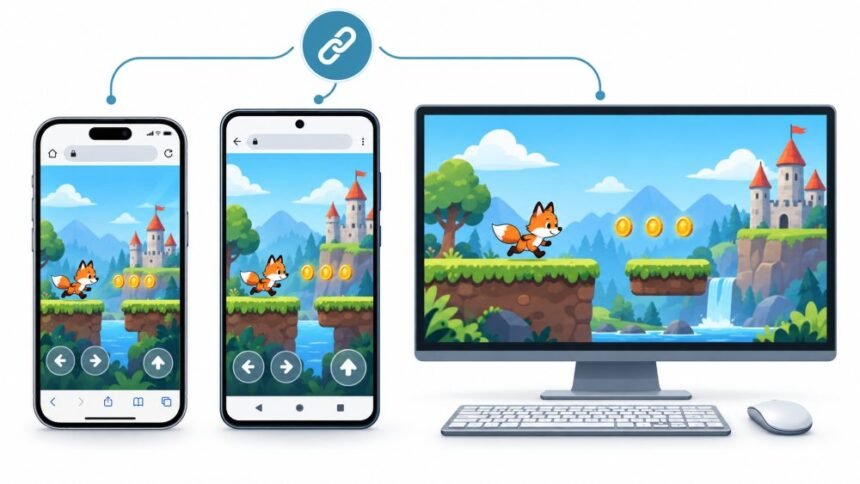
You find a browser game on a Tuesday night, lose an hour to it on your laptop, and drop the link in the group chat. By morning, you have three replies. One friend loved it. One says the sound never worked. One says it ate forty minutes of progress and started them back at level one.
Nobody is lying, and the game did not change. The link went to three different machines running three different browser engines under three different sets of rules, and what came out the other side was, functionally, three different games. This is the part almost nobody explains, so here is what actually shifts when a single URL lands on an iPhone, an Android phone, and a desktop, and what you can do about each difference.
Link Is The Same, The Engine Underneath Is Not
On desktop, the browser you pick decides what code actually runs. Chrome, Edge, Brave, and Opera all sit on Blink. Firefox runs Gecko. Safari on macOS runs WebKit. Swap browsers, and you swap engines.
On Android, the same logic holds. Chrome and Samsung Internet are both Chromium-based, Firefox for Android is Gecko, and a fourth thing called Android System WebView quietly renders any page you open inside another app.
The iPhone is the exception, and it is the single most useful fact in this whole article. Every browser on iOS has historically been required to use WebKit, which means Chrome on an iPhone is Safari wearing a different coat. Apple opened a door to alternative engines under the European Union’s Digital Markets Act, and the official developer guidance on alternative browser engines in the EU sets out the entitlements involved. Two and a half years later, no major browser vendor has shipped one to the public. The UK’s competition regulator has since pushed for the same opening on a 2027 timeline. For now, treat iPhone as one engine wearing many hats.
The practical fallout: on desktop and Android, “try a different browser” is a real fix. On an iPhone, it almost never is. If a game misbehaves in Safari on your phone, installing Chrome will usually reproduce the identical bug, because it is the identical renderer.
Fullscreen Is Where The iPhone Splits Off First
Ask a desktop or Android browser to make a game fill the screen, and it will. The Fullscreen API has been standard there for years. Safari on macOS and iPadOS caught up too, and the WebKit release notes for Safari 16.4 document the unprefixed implementation.
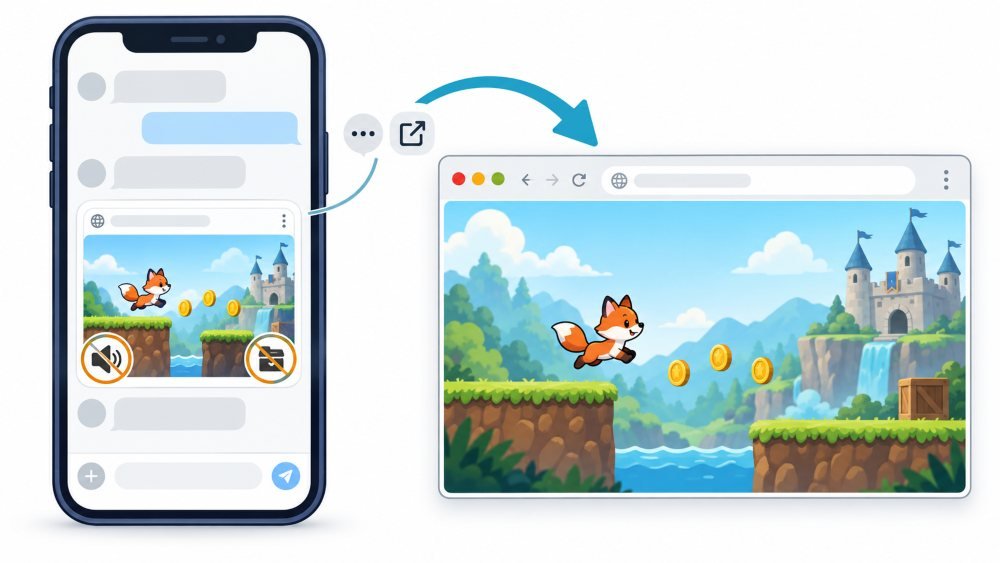
Safari on iPhone still does not support it for ordinary page elements. Only video gets true fullscreen. That gap has been open since 2023 and shows no sign of closing.
So iPhone web games fake it. They stretch to the dynamic viewport height, hope the address bar scrolls away, and politely suggest you add the page to your Home Screen. The side effects are things players notice without knowing why:
- The toolbar slides in and out as you scroll, resizing the canvas mid-jump and occasionally shifting the whole layout.
- The notch or Dynamic Island crops the top of the play area if the developer skipped safe-area insets.
- The home gesture bar sits exactly where a lot of games put the jump button, so your thumb triggers a swipe instead of a jump.
- Screen orientation locking, which Android and installed web apps handle cleanly, is unreliable in iPhone Safari, meaning a landscape game may keep rotating under you.
Adding the game to your Home Screen fixes most of this in one step. It is a two-second action that changes the experience more than any setting inside the game.
Controls Reshape The Game More Than Graphics Do
A platformer designed around a keyboard has instant, unambiguous input. Left is left. Nothing covers the screen. Hover states can tell you what a button does before you commit to it.
Move that to a touchscreen and the design has to absorb three losses at once. There is no hover, so tooltips and highlight-on-approach feedback disappear. There is no right-click, so secondary actions get relocated into long-press or menus. And your thumbs now occupy roughly fifteen percent of the visible playfield, usually the bottom corners, which is where a lot of games put important information.
Mouselook games have an extra problem. Pointer lock, the thing that lets a first-person game capture your cursor, has no touch equivalent at all, so browser shooters either ship a virtual stick or do not work on phones.
Controllers narrow the gap considerably, and support is better than most people assume. The Gamepad API documented on MDN works in Chrome, Firefox, Edge, Samsung Internet, and Safari, including Safari on iOS since version 10.3. Bluetooth controllers pair with all three device types. Android additionally accepts wired pads through a USB OTG adapter, which iPhones generally will not do.
Two quirks trip people up. First, browsers deliberately hide a connected controller until you press a button on it, as a privacy measure, so pairing alone is not enough and the game cannot see the pad until you hit something. Second, rumble is not universal. Haptic feedback through the gamepad works in Chromium browsers and in Safari on macOS, but not in Safari on iOS, so the same controller that vibrates on your PC will sit silent on your phone. If inputs feel wrong before you blame the game, it is worth checking the controller’s raw button and axis output in a browser-based gamepad tester, which tells you in seconds whether the pad, the browser, or the game is at fault.
Sound Is The Most Common Broken Report
More “this game is broken” messages come from audio than from anything else, and the cause is almost always a browser policy rather than a bug.
Every modern browser blocks audio that starts without your say-so. In practice, the game’s audio engine is created in a suspended state and stays there until you tap, click, or press a key, at which point the code has to explicitly wake it up. Google’s guidance on Web Audio, autoplay policy, and games walks through exactly this. Plenty of small browser games build their audio on page load, never call the resume step, and ship a permanently silent build that their developer never noticed because their own browser had them flagged as a frequent visitor.
Safari has run a stricter version of this policy for longer, which is why the same game more often lands silent on iPhone than on desktop. Two further iPhone-only wrinkles: the physical ringer switch mutes some audio paths and not others, and the volume rocker adjusts ringer volume rather than media volume until something is actually playing. Hence, players turn the volume all the way up and still hear nothing.
If a browser game is silent, tap anywhere in the play area first, then use the game’s own sound toggle, then reload. That sequence resolves it far more often than any device setting.
Frame Rate, Heat, And What The GPU Is Allowed To Do
WebGL 2 is the safe common ground. It runs on essentially every phone from the last several years and on all desktop browsers, and the large majority of browser games target it.
WebGPU is the newer and considerably faster layer, and its availability is the most uneven of anything here. Chrome has shipped it on desktop since version 113 in 2023 and on Android since version 121, but only on Android 12 or later with Qualcomm or ARM graphics. Safari added it in version 26, meaning iOS 26 or newer. As web.dev’s rundown of WebGPU across major browsers explains, all four major engines now ship it by default. At the same time, the WebGPU implementation status wiki tracks the device-level gaps that remain. If your phone is a few years old or your iPhone is on an older iOS release, a WebGPU title either falls back to a simpler renderer or refuses to start.
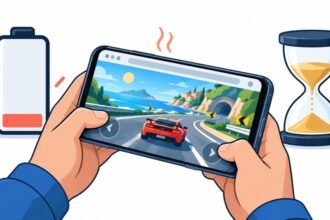
Then there is heat. A desktop holds its frame rate for hours. A phone in your hand will run beautifully for four or five minutes, warm up, and then throttle its graphics clock to protect itself, at which point the same scene that ran at 60 frames per second is running at 35, and you have done nothing wrong. Screen resolution makes it worse, since phone displays pack roughly three device pixels into every layout pixel, and a game that does not cap its render scale is asking the GPU to draw nine times the work for a screen the size of a playing card.
Add mobile data to the picture and the gap widens again. A WebGL bundle can be 80 to 150 megabytes on a desktop; that is a few seconds. On a metered mobile plan, it is a real cost, and one that repeats if the browser has cleared its cache.
Saves Vanish More Often On iPhone, And The Game Is Not At Fault.
This is the sleeper issue, and the one most worth knowing.
Browser games save progress in localStorage or IndexedDB, which is storage the page writes to with JavaScript. WebKit treats that storage as a tracking risk. Its tracking prevention deletes all script-writable storage for a site after seven days of browser use without interaction with that site, and the WebKit post on storage policy updates covers the broader eviction rules, including quota pressure and least-recently-used deletion.
Seven days of browser use, not seven calendar days. If you play a game on your iPhone, put it down for two weeks, and come back, the save can legitimately be gone—no warning, no error, just a fresh start. MDN’s reference on storage quotas and eviction criteria sets out how the same mechanics differ across browsers, and the short version is that Chrome on Android and desktop is far more forgiving than Safari.
Four things help:
- Add the game to your Home Screen. An installed web app keeps its own usage clock and its own storage allocation, so the seven-day timer tracks your actual play rather than your general browsing.
- Use the game’s account or cloud save if it offers one. Server-side saves are immune to all of this.
- Export a save code or save file when the option exists, especially before a long break.
- Avoid private browsing for anything you want to keep, since that storage is discarded when you close the tab regardless of platform.
In-App Browsers Are Effectively A Fourth Device
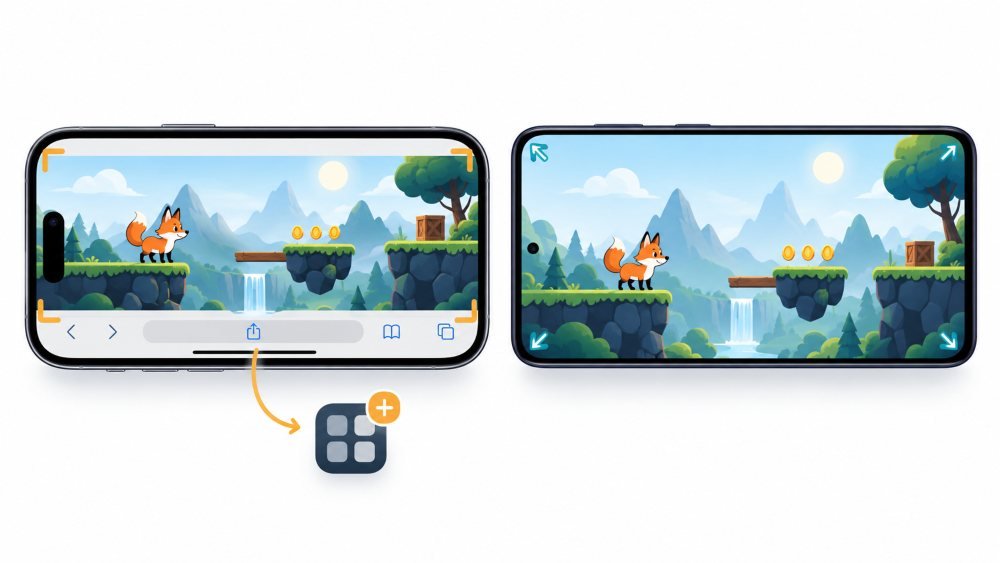
When a link opens inside Instagram, TikTok, Facebook, or a messaging app, you are not in Safari or Chrome. You are in an embedded WebView that the host app controls. It starts with no cookies, shares no storage with your real browser, restricts downloads and permission prompts, blocks some pop-up behavior, and frequently does not expose newer graphics features at all.
For a browser game, that means no saved progress, no logged-in account, possible audio failures, and a renderer that may quietly drop to a fallback path. If a game behaves strangely and you arrived from a social feed, open the menu, choose to open the page in your browser, and try again before concluding anything about the game.
A Short Checklist Worth Keeping
On iPhone: add the game to your Home Screen, tap once before expecting sound, connect controllers over Bluetooth and press a button to wake them, and do not count on progress surviving a long break unless the game has accounts.
On Android: prefer Chrome or Samsung Internet over whatever in-app browser you landed in, keep an eye on heat during long sessions, and use a USB OTG adapter if you want a wired pad.
On desktop: expect the best case, and remember that a game feeling unresponsive on your phone is usually input and thermal limits rather than a bad port.
Limits And Safety Worth Taking Seriously
Browser games avoid app stores, which is convenient and also removes several safety layers that people assume are still there.
There is no store review, so a page can ask for microphone, camera, location, or notification access as casually as it asks you to click play. A real game almost never needs any of those. Deny by default.
Payments made inside a browser game sit outside App Store and Google Play refund systems and outside their purchase controls. If a child plays browser games on a shared device, store-level purchase restrictions will not cover them, and device-level content and screen time restrictions are the only meaningful control. That gap is worth a two-minute settings check rather than an assumption.
Free game portals are heavily monetized, and malicious advertising is the main risk vector. Full-page redirects, fake update prompts, and anything urging you to install a file to continue should be closed rather than investigated. A browser game never needs a download.
Where real-money gaming is involved, the fact that a site loads in your browser says nothing about whether it is licensed or legal in your jurisdiction, and regional restrictions, age verification, and deposit and self-exclusion tools vary enormously between operators. Check the licensing details before money is involved, not after.
Finally, the mundane risks. Sustained 3D rendering heats phones and drains batteries quickly, large asset downloads eat metered data, and hour-long sessions on a small bright screen at arm’s length are harder on your eyes and hands than the same session on a desktop. Breaks are not a productivity tip here; they are how you avoid a sore thumb and a hot phone.
Short Version
One URL, three devices, three experiences. The iPhone is the most constrained of the three and the most likely to lose your progress. Android sits in the middle, with good capability that varies by chipset and heat. Desktop is the reference platform almost every browser game is built and tested against.
None of this means mobile browser gaming is bad. It means the differences are structural rather than accidental, and once you know which lever belongs to which platform, most of the frustrating moments have a fix that takes a few seconds.
Disclaimer: This article is for general information only. Browser capabilities, platform policies, and regional regulations change frequently, and details accurate at the time of writing may since have shifted. Verify current support and current legal requirements, particularly for any real-money gaming, against official sources for your own device and jurisdiction. Nothing here constitutes legal, financial, or medical advice.