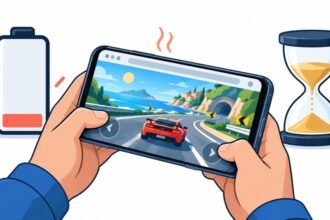


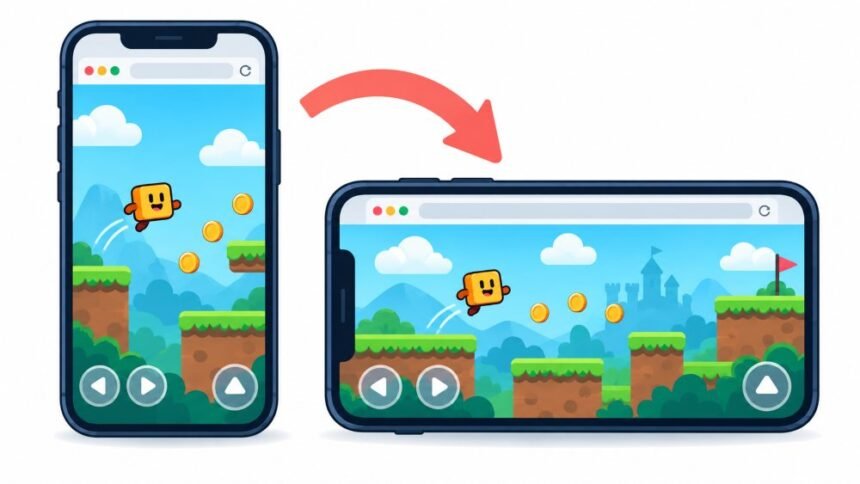
You turn the phone sideways because the buttons are cramped, and the game answers by going blank, snapping back to a menu, or freezing halfway through a move. It feels like you broke something by holding the device the way it was clearly designed to be held. Usually you did not, and usually the game is not broken either.
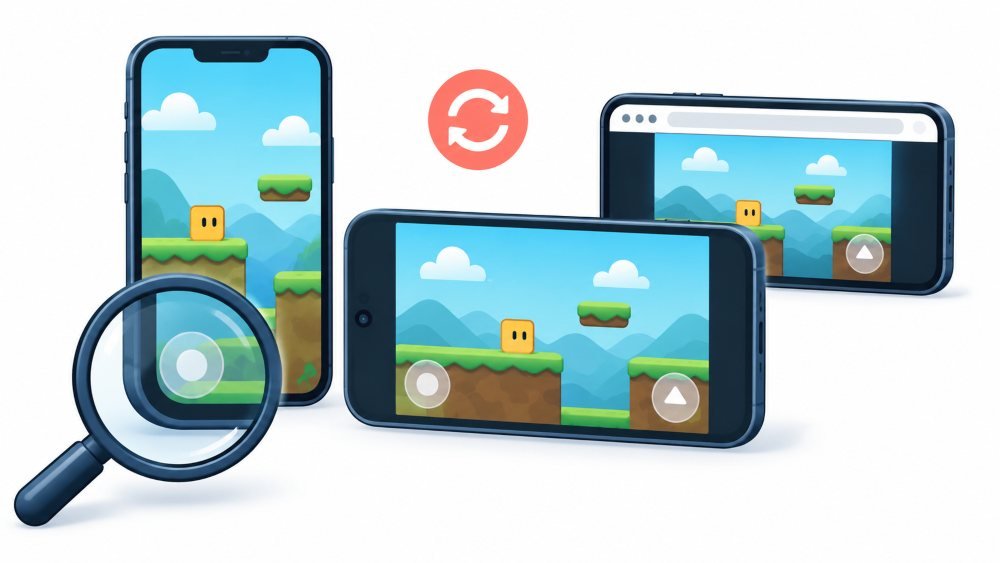
Rotating the phone does not reload the page. The tab stays open, the same code keeps running, and every number the game is holding is still sitting in memory a second later. What changes is the shape of the space the game was drawing into. The browser recalculates the layout, tells the page its window is now a different size, and hands the problem over. Everything you see next is the game’s response to that message, or its failure to respond.
How much that costs you depends on decisions a developer made months ago and on how much free memory your phone happens to have right now. That is why the same rotation is invisible in one game and destructive in another.
What Your Phone Actually Does When You Turn It
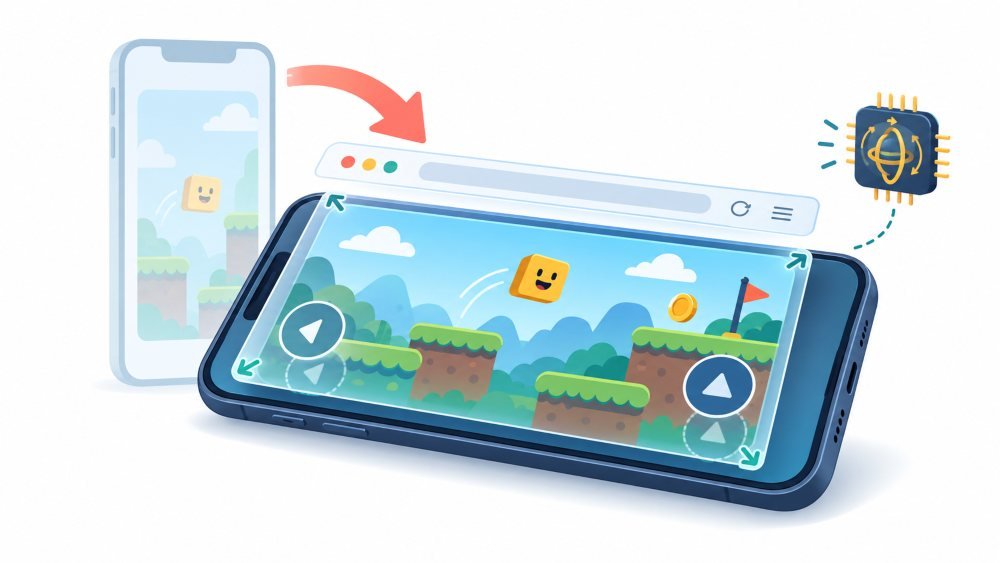
Four separate systems act in sequence. The motion sensors notice that gravity has moved. The operating system decides whether to rotate at all, which depends on your rotation settings. The browser then changes the width and height of the viewport and tells the page about it. Finally, the game’s own code runs and decides what to do with the news. A stumble anywhere along that chain looks identical from where you are sitting, which is part of why rotation problems are so hard to describe to anyone.
The useful thing to hold onto is that this is a resize, not a restart: same document, same session, same variables. A game written with resizing in mind redraws itself wider and carries on with your score intact.
Why The Screen Can Blank For A Second
Most browser games draw into a canvas element. To fill the new landscape shape, the game gives that canvas new dimensions, and setting either the width or the height clears the drawing surface completely, including everything already painted on it. An action game that repaints sixty times a second refills it before your eye registers the gap. A chessboard, a card game, or a puzzle that only repaints when something changes can sit there empty until you tap and give it a reason to draw again. The state is usually still there. The picture of it is not.
Why Some Games Lose Progress, And Others Survive
The difference is where your progress was living. A score held in a variable survives rotation without trouble, because nothing restarted. Progress vanishes when the game responds to the size change by rebuilding itself: regenerating the level to fit a new aspect ratio, re-running its setup routine, reshuffling the board for the new grid. That is a shortcut, and a common one. Treating a resize as “begin again at this size” is far less work than teaching a layout to stretch.
This is also why a game that writes to browser storage behaves so differently. If your progress was saved rather than merely remembered, rotation and even an accidental reload cost you nothing beyond the current turn.
What Happens To Games That Use 3D Graphics
Games using WebGL depend on a graphics context that the system can take back. It happens under memory pressure, when the device reallocates graphics resources, or when the browser decides a tab has had enough. Rotation is one of the moments that can tip a loaded device over that line, because the larger drawing buffer needs more memory at exactly the wrong time. Phaser’s documentation on the lost context event describes the aftermath plainly: every WebGL resource is wiped, and the renderer has to rebuild before anything is safe to use again. Engines that handle this recover in a blink. A game without that handling shows a black rectangle that no amount of tapping will fix.
When Rotating Really Does Reload The Page
Sometimes the page genuinely does restart, and rotation only appears to be the cause. Browsers can discard a background tab to reclaim memory, and revisiting that tab reloads it from scratch. People rotate right after switching back from another app or waking the phone, so the reload and the rotation arrive together, and the wrong one gets blamed.
A smaller number of sites reload themselves deliberately when the window size changes, usually to rebuild a responsive layout or refresh advertising. On an article page, nobody notices. In a game, it is the difference between a minor visual hiccup and starting over.
Why The Game Will Not Turn Landscape At All
Two unrelated causes look the same. Either your device is refusing to rotate, or the game is built for one orientation and ignores the extra room.
There is also a limit developers cannot engineer around. The browser method for locking orientation is unavailable in several widely used browsers, Safari among them. A game running fullscreen in Chrome on Android can hold itself in landscape. The same game on an iPhone cannot, which is why it puts a rotate prompt on the screen and waits for you to do the work instead.
Why “Please Rotate Your Device” Is More Than An Annoyance
Restricting content to a single orientation is treated as an accessibility failure under WCAG success criterion 1.3.4 unless that orientation is genuinely essential, and showing a message demanding the reader reorient is listed among the specific ways sites fail it. The reasoning becomes obvious once you picture the readers. A phone clamped to a wheelchair arm or a bedside stand does not turn. Someone with limited grip strength, a tremor, or one usable hand may not be able to hold a device sideways for twenty minutes. For those readers, a rotate prompt is not a suggestion. It is a closed door.
Why The Layout Keeps Shifting After The Rotation Settles
The rotation finishes, and the buttons still move around for a moment. Part of that is the browser’s own toolbar. The small, large, and dynamic viewport units were introduced precisely because mobile browser chrome changes the visible height as it collapses and returns. In landscape, the usable height is already tight, so the address bar sliding away takes a noticeable share of the playfield with it.
Landscape also rearranges the parts of the screen you cannot use. The camera cutout moves to one side, and the home indicator sits along the bottom edge, so a control placed at the corner in portrait can end up half underneath them. If the game takes typed input, expect the on-screen keyboard to cover most of a landscape screen, which is why word games often feel worse sideways rather than better.
What To Do Before You Rotate
The habit worth building is to rotate at a moment when losing a second costs nothing. Between rounds, on a menu, after a checkpoint. Turning the phone mid-move is what converts a harmless redraw into a lost run.
Rotate once, deliberately, and then hold the device still for a moment. Rocking it back and forth fires several size changes in a row, and a game that rebuilds itself on each one has to do that expensive work repeatedly while you wait.
If the game offers an export code, a save file, or a recovery link, use it before you test rotation for the first time. Finding out how a game handles being turned sideways is worth doing on a session you do not mind losing.
What To Do When It Has Already Gone Wrong
- Rotate back to the orientation you started in. Many games recover on their own, because the dimensions they were built around have returned.
- Tap or drag once inside the play area. A game that only repaints on activity needs a reason to draw the screen again.
- Close other tabs and background apps before you reload anything, particularly after a black screen in a 3D game.
- Leave clearing site data until every other option is gone, because that is the step that deletes locally saved progress.
- If you arrived through the browser built into a social app, reopen the game at its own address in your normal browser.
A reload also tells you something useful. If the game puts you back where you were, it had been saving all along, and rotation was never a real risk. If it drops you at the title screen, you now know what that game is worth committing an evening to.
How To Control Rotation Yourself
On an iPhone, the switch is in Control Center, and Apple’s guide to rotating the screen covers where to find it on models with and without a home button. Read the name carefully before relying on it. It is a portrait lock, so it will stop an unwanted flip while you are holding the phone upright, but it will not pin you in landscape once you get there.
On Android, the equivalent lives in quick settings and again in the accessibility settings, and Google’s page on automatic screen rotation adds a detail worth knowing. If you use TalkBack, rotating the screen can interrupt spoken feedback, which is why some people leave auto-rotate switched off permanently. If that is your setup, a game that insists on landscape will never get there, and no amount of turning the phone will change that until the setting does.
Limits Of Anything You Read About This
Rotation behaviour varies by browser, browser version, device, available memory, and the individual game. The same title can be seamless on one phone and hostile on another, and a game that handled rotation well last month can regress after an update. Anything written here describes the common patterns, not a promise about the game in front of you.
Nothing here recovers progress that was only ever held in memory. Once a game has re-run its setup, that run is gone, and no setting, extension, or reload sequence brings it back. The practical protection is choosing where you rotate, not fixing it afterwards.
One last thing that has nothing to do with code. Rotating a phone takes your eyes off the room and usually needs both hands, so it is a poor thing to do while walking or crossing a road. If rotation animations leave you queasy, both platforms have reduce-motion settings that soften them. And if the game uses tilt as a control, turning the device mid-session is not a neutral act, because the movement itself is input.
A Short Version To Remember
Rotation is a resize, not a restart. The browser changes the shape of the space, and the game decides what that means. Turn the phone when nothing is at stake, hold it still for a second afterwards, and treat a blank screen as a drawing problem before you treat it as lost progress.